Create Azure Groups and Assign Members
This section describes how to create groups on Azure and assign them member operators. You should define a separate group for each required security level. These group names are configured in OVOC Azure Authentication Settings screen from where they are mapped to the relevant security level; see the list of security groups that are defined below. Identical group names must be configured on Azure. For example, for System Administrator User Group Name, configure "OVOC_Admin" string in OVOC and as the group name on Azure.
OVOC Security Groups
| Security Group OVOC (Parameter Name) | Description |
|---|---|
|
System Administrator User Group Name |
The name of the User Group of the 'System' type operator whose security level is 'Administrator'. |
|
System Operator User Group Name |
The name of the User Group of the 'System' type operator whose security level is 'Operator'. |
|
System Monitor User Group Name |
The name of the User Group of the 'System' type operator whose security level is 'Monitor'. |
|
Tenant Administrator User Group Name |
The name of the name of the User Group of the 'Tenant' type operator whose security level is 'Administrator'. |
|
Tenant Operator User Group Name |
The name of the User Group of the 'Tenant' type operator whose security level is 'Operator'. |
|
Tenant Monitor User Group Name |
The name of the name of the User Group of the 'Tenant' type operator whose security level is 'Monitor'. |
|
Tenant Monitor Links User Group Name |
The name of the User Group of the 'Tenant' type operator whose security level is 'Monitor Links'. |
|
Tenant Endpoints Group User Group Name |
The name of the User Group of the 'Tenant' type operator |
| ➢ | To assign groups on Azure: |
| 1. | Login to the Azure portal as Global Administrator. |
| 2. | Navigate to the Tenant Overview page. |
Tenant Overview Page

| 3. | In the Navigation pane, select Groups. |
Create New Group
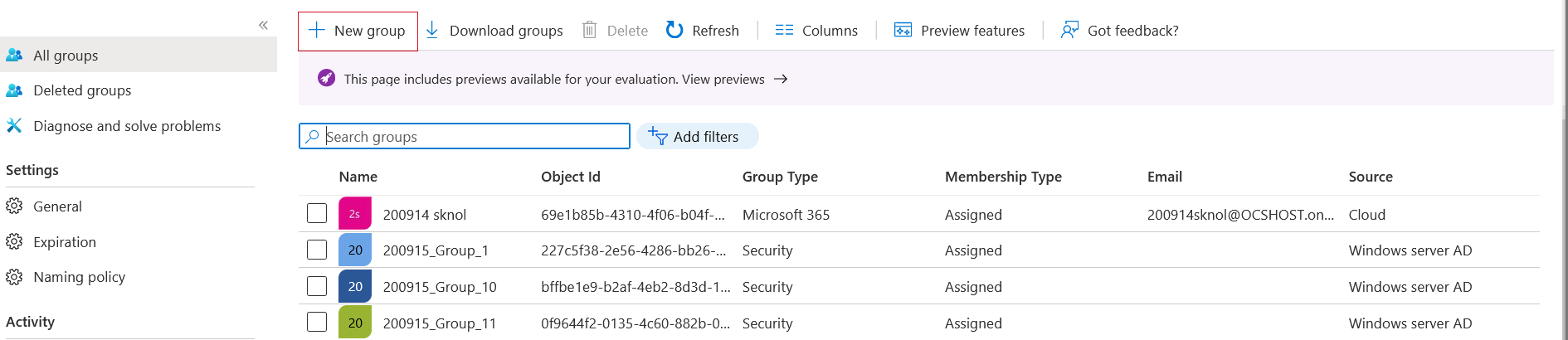
| 4. | Click New group. |
New Group
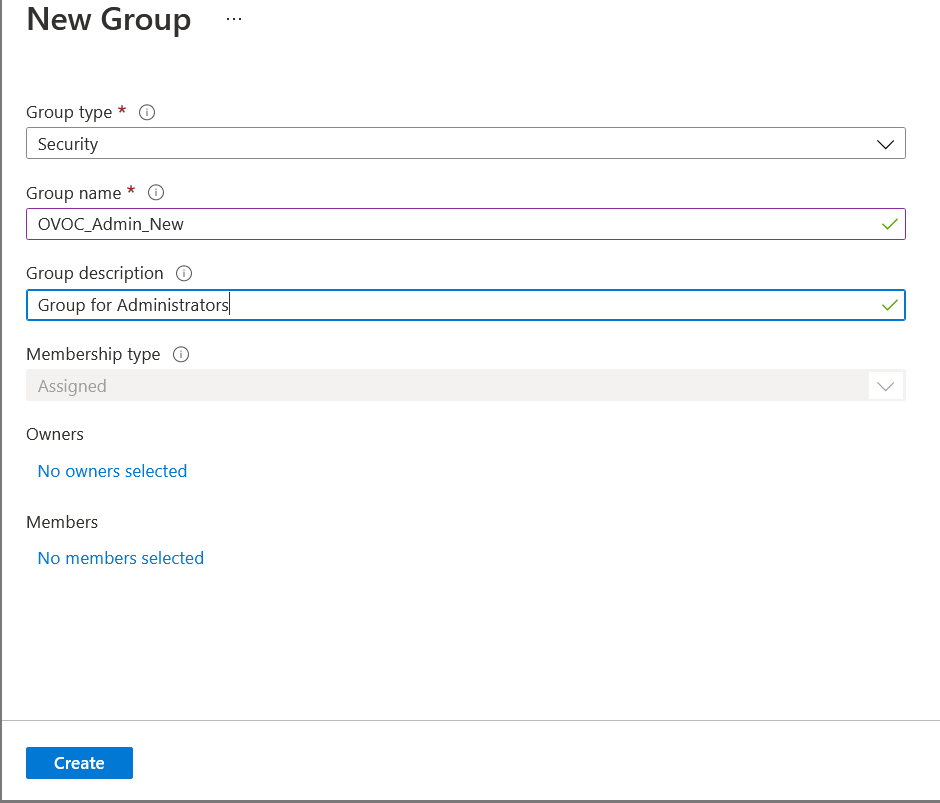
| 5. | Enter the details of the new group and then click Create. |
The same groups that you define must be configured in OVOC in the Authentication screen (see Configuring OVOC Web Azure Settings - Single Tenant Setup)
Created Group
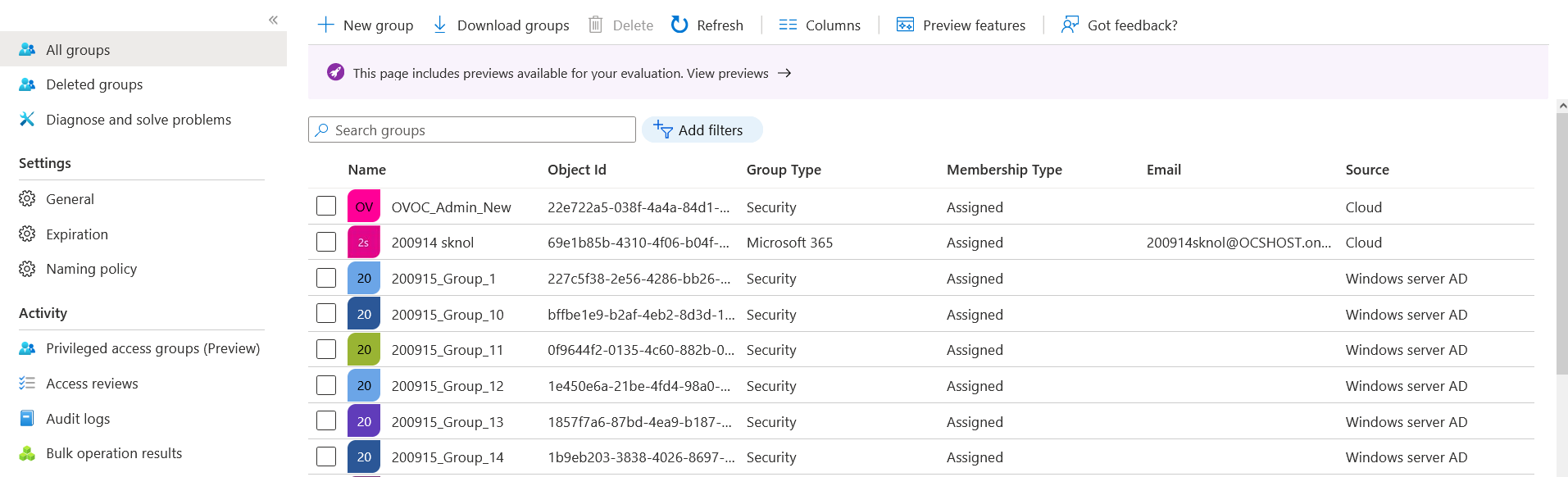
| 6. | Select the new group. |
| 7. | In the Navigation pane, select Members. |
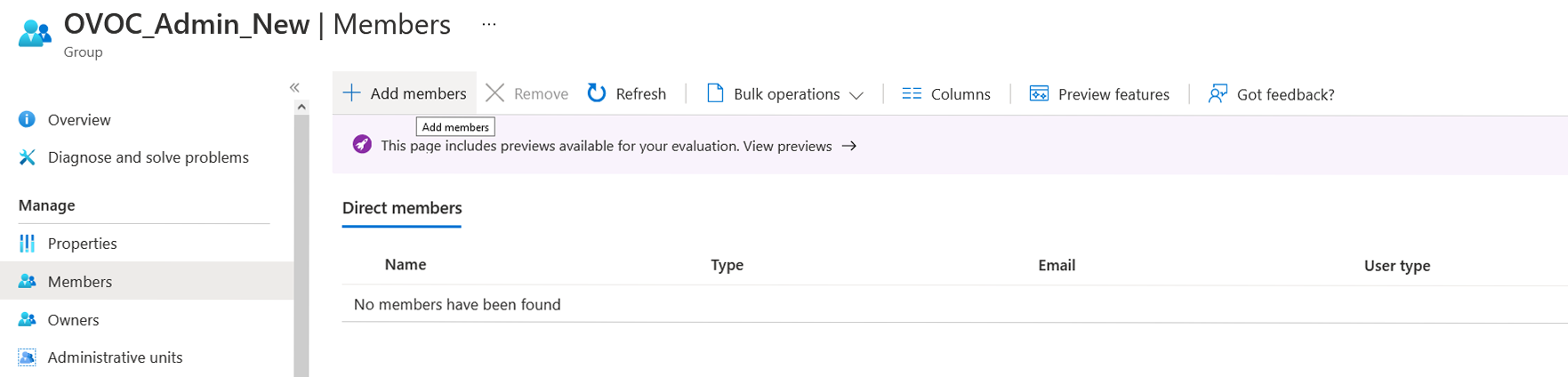
Add Members to Group
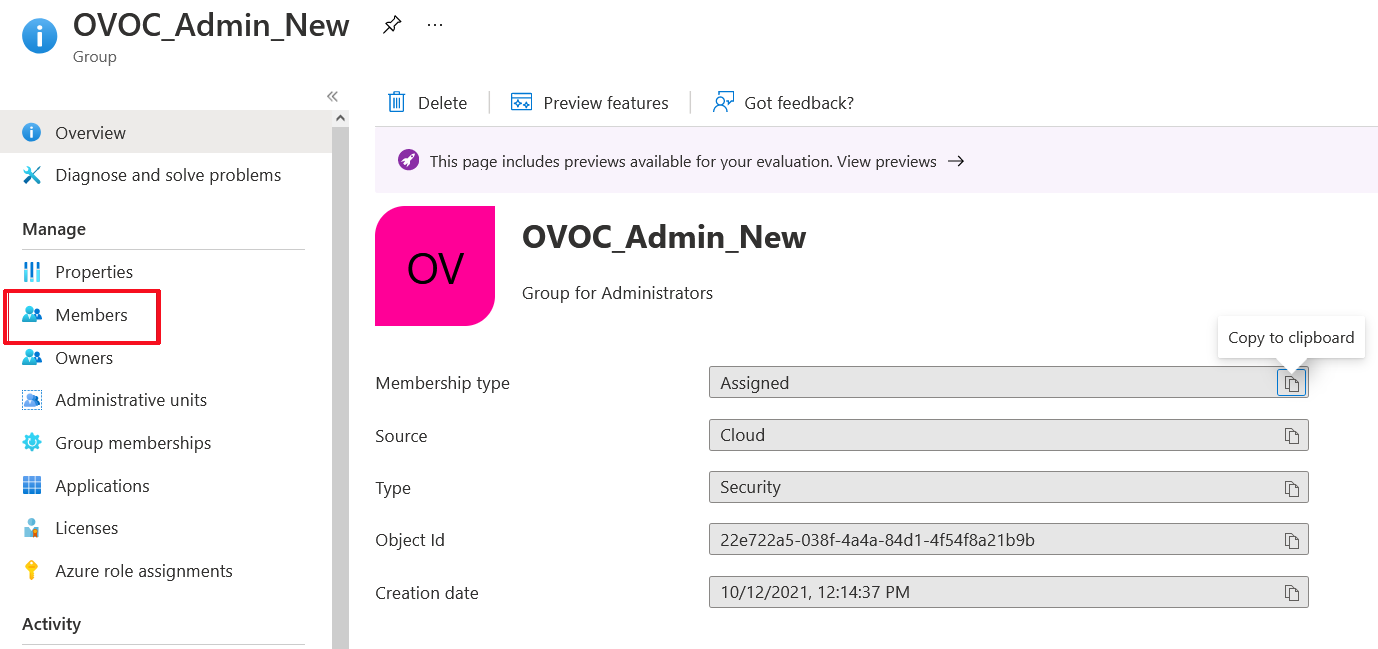
| 8. | Click Add members to add new members to the group. |
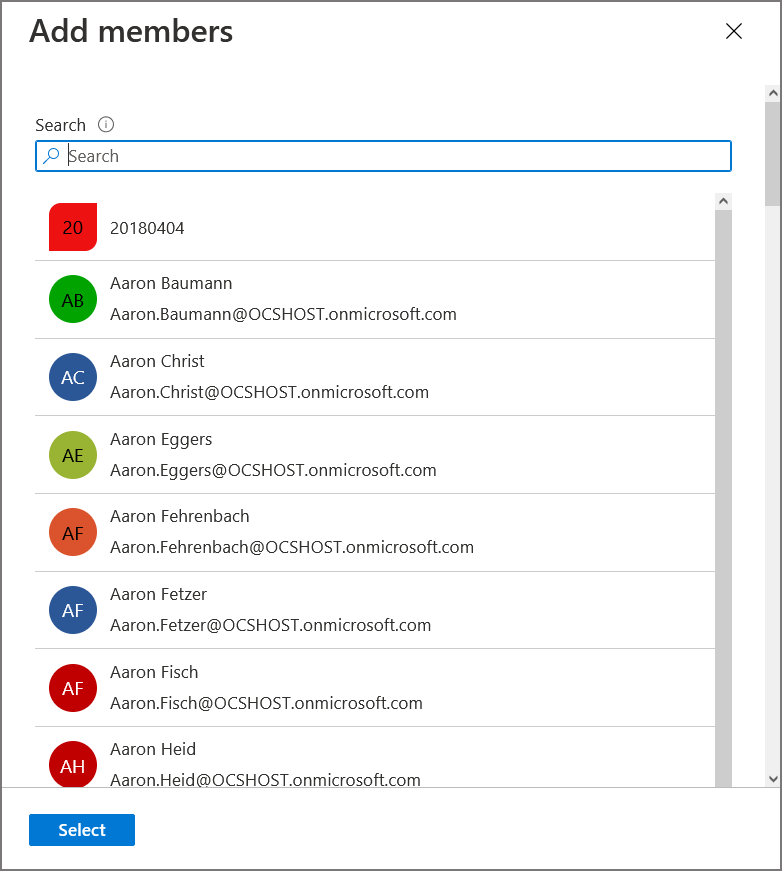
| 9. | Select the members to add to the Group. |
Select Group Members
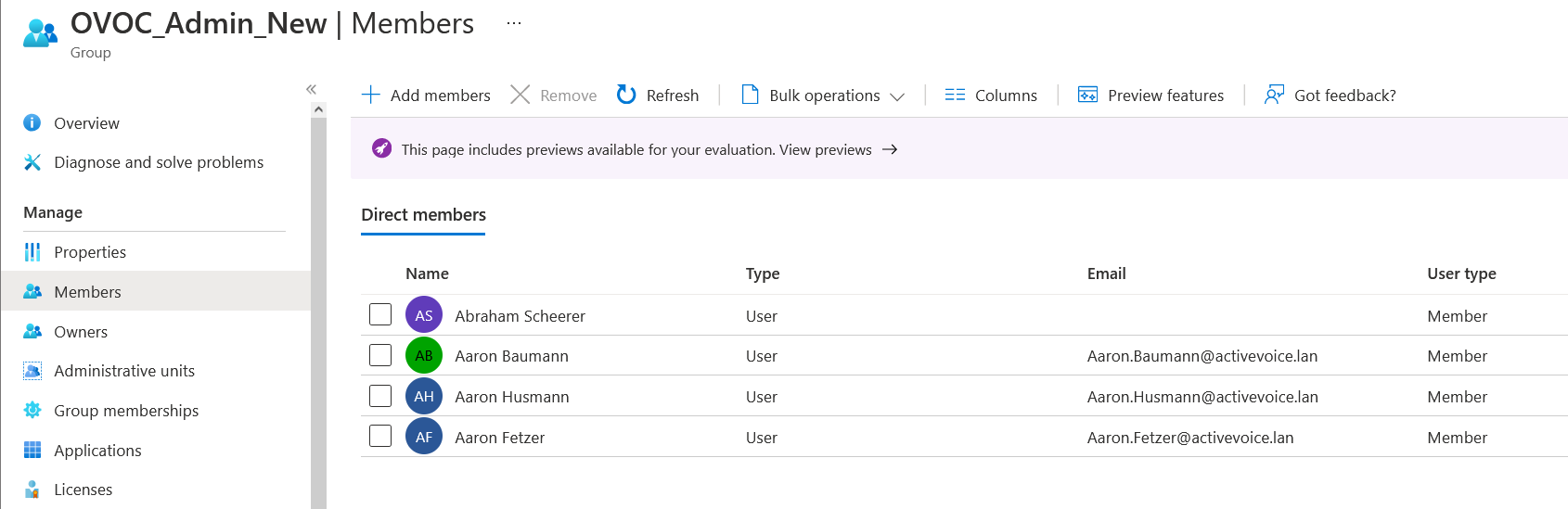
The new members are added to the group.
New Group Members
| 10. | Proceed to Configuring OVOC Web Azure Settings - Single Tenant Setup. |